Developer Guide
Overview
CCAConnect is a desktop application that aims to assist NUS CCA leaders in managing and collating relevant CCA personnel’s contact details, as well as help to track attendance details for CCA sessions. Equipped with features like attendance marking, contact management, contact filtering and profile switching, CCAConnect helps to reduce the headaches of personnel tracking.
Table of Contents
- Overview
- Table of Contents
- Acknowledgements
- Setting up, getting started
- Design
- Implementation
- Documentation, logging, testing, configuration, dev-ops
- Appendix: Requirements
- Appendix: Instructions for manual testing
- Appendix: Planned Enhancements
Acknowledgements
- This project is based on the AddressBook-Level3 project created by the SE-EDU initiative.
- Libraries used: JavaFX, Jackson, JUnit5
Setting up, getting started
Refer to the guide Setting up and getting started.
Design
 Tip: The
 .puml files used to create diagrams in this document can be found in the docs/diagrams folder. Refer to the PlantUML Tutorial at se-edu/guides to learn how to create and edit diagrams.
Architecture
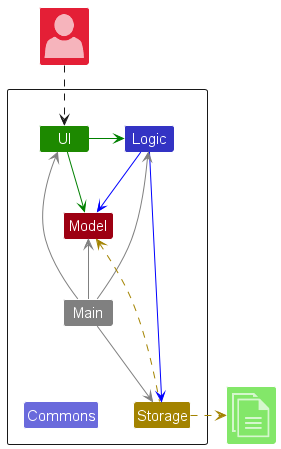
The Architecture Diagram given above explains the high-level design of the App.
Given below is a quick overview of main components and how they interact with each other.
Main components of the architecture
Main (consisting of classes Main and MainApp) is in charge of the app launch and shut down.
- At app launch, it initializes the other components in the correct sequence, and connects them up with each other.
- At shut down, it shuts down the other components and invokes cleanup methods where necessary.
The bulk of the app’s work is done by the following four components:
-
UI: The UI of the App. -
Logic: The command executor. -
Model: Holds the data of the App in memory. -
Storage: Reads data from, and writes data to, the hard disk.
Commons represents a collection of classes used by multiple other components.
How the architecture components interact with each other
The Sequence Diagram below shows how the components interact with each other for the scenario where the user issues the command delete 1.
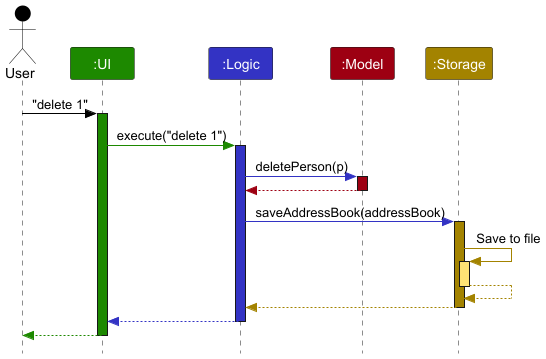
Each of the four main components (also shown in the diagram above),
- defines its API in an
interfacewith the same name as the Component. - implements its functionality using a concrete
{Component Name}Managerclass, which follows the corresponding APIinterfacementioned in the previous point.
For example, the Logic component defines its API in the Logic.java interface and implements its functionality using the LogicManager.java class which follows the Logic interface. Other components interact with a given component through its interface rather than the concrete class (reason: to prevent outside component’s being coupled to the implementation of a component), as illustrated in the (partial) class diagram below.
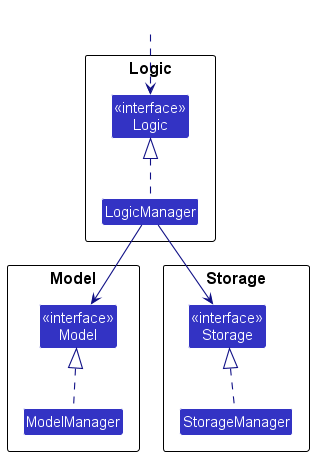
The sections below give more details of each component.
UI component
The API of this component is specified in Ui.java
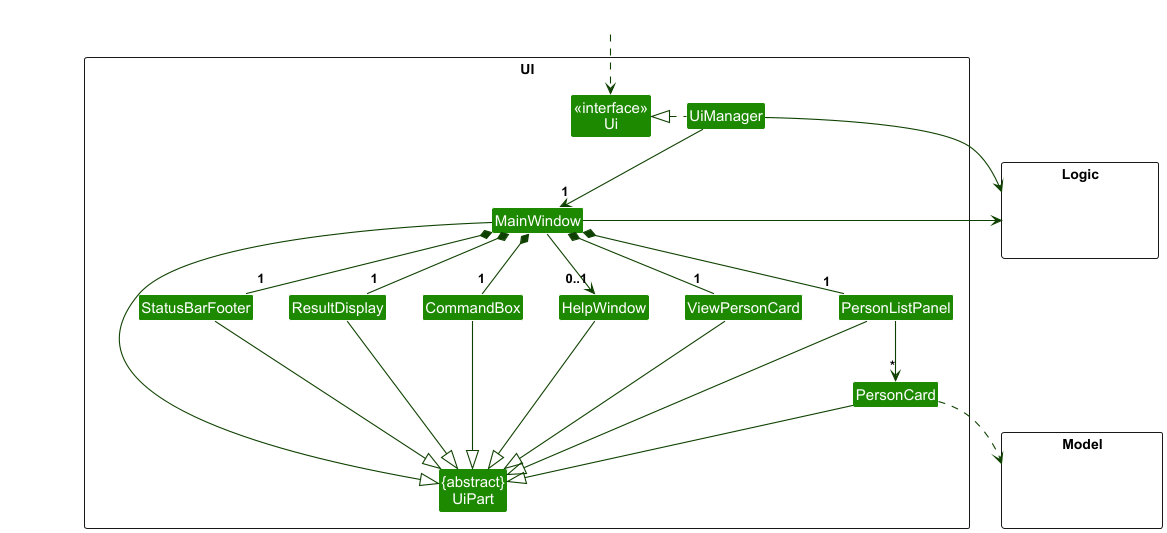
The UI consists of a MainWindow that is made up of parts e.g.CommandBox, ResultDisplay, PersonListPanel, StatusBarFooter, HelpWindow & ViewPersonCard. All these, including the MainWindow, inherit from the abstract UiPart class which captures the commonalities between classes that represent parts of the visible GUI.
The UI component uses the JavaFx UI framework. The layout of these UI parts are defined in matching .fxml files that are in the src/main/resources/view folder. For example, the layout of the MainWindow is specified in MainWindow.fxml
The UI component,
- executes user commands using the
Logiccomponent. - listens for changes to
Modeldata so that the UI can be updated with the modified data. - keeps a reference to the
Logiccomponent, because theUIrelies on theLogicto execute commands. - depends on some classes in the
Modelcomponent, as it displaysPersonobject residing in theModel.
Logic component
API : Logic.java
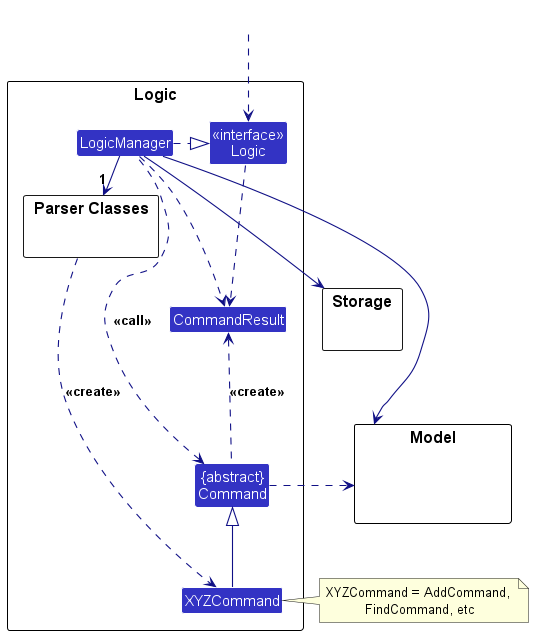
Here’s a (partial) class diagram of the Logic component:
The sequence diagram below illustrates the interactions within the Logic component, taking execute("delete 1") API call as an example.
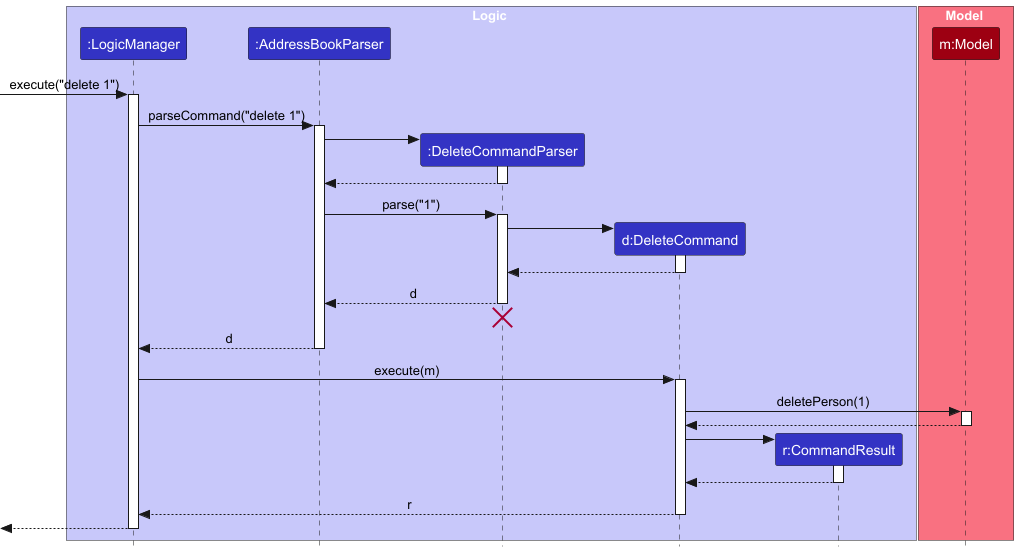
 Note: The lifeline for
 DeleteCommandParser should end at the destroy marker (X) but due to a limitation of PlantUML, the lifeline continues till the end of diagram.
How the Logic component works:
- When
Logicis called upon to execute a command, it is passed to anAddressBookParserobject which in turn creates a parser that matches the command (e.g.,DeleteCommandParser) and uses it to parse the command. - This results in a
Commandobject (more precisely, an object of one of its subclasses e.g.,DeleteCommand) which is executed by theLogicManager. - The command can communicate with the
Modelwhen it is executed (e.g. to delete a person).
Note that although this is shown as a single step in the diagram above (for simplicity), in the code it can take several interactions (between the command object and theModel) to achieve. - The result of the command execution is encapsulated as a
CommandResultobject which is returned back fromLogic.
Here are the other classes in Logic (omitted from the class diagram above) that are used for parsing a user command:
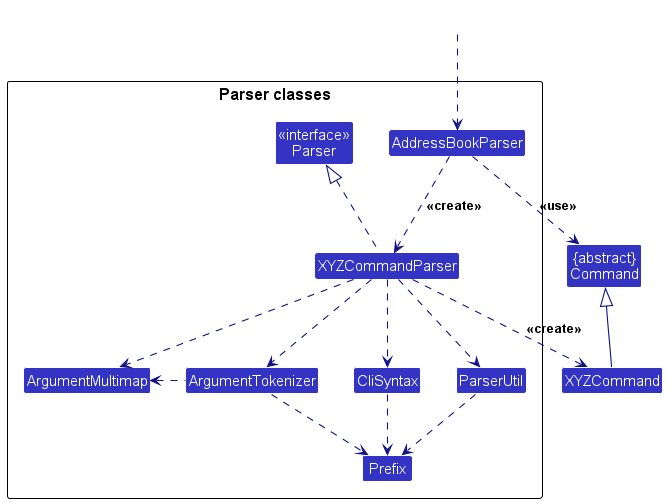
How the parsing works:
- When called upon to parse a user command, the
AddressBookParserclass creates anXYZCommandParser(XYZis a placeholder for the specific command name e.g.,AddCommandParser) which uses the other classes shown above to parse the user command and create aXYZCommandobject (e.g.,AddCommand) which theAddressBookParserreturns back as aCommandobject. - All
XYZCommandParserclasses (e.g.,AddCommandParser,DeleteCommandParser, …) inherit from theParserinterface so that they can be treated similarly where possible e.g, during testing.
Model component
API : Model.java
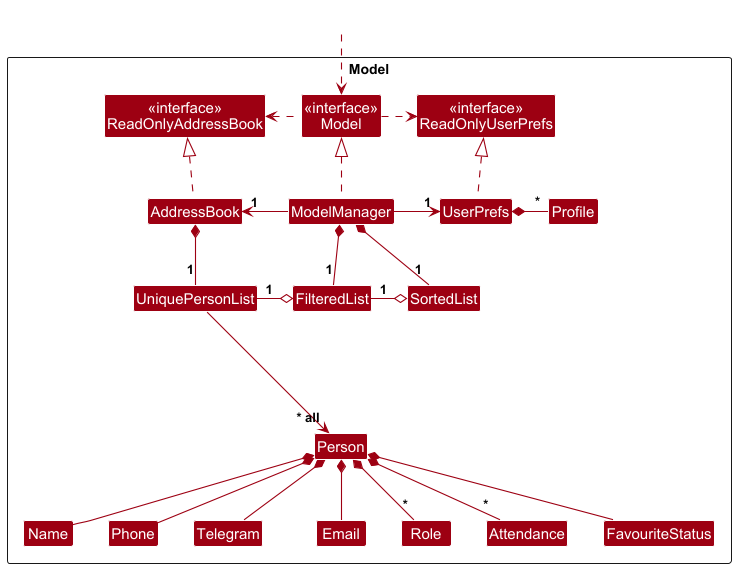
The Model component,
- stores the address book data i.e., all
Personobjects (which are contained in aUniquePersonListobject). - stores the currently ‘selected’
Personobjects (e.g., results of a search query) as a separateFilteredList<Person>. - wraps the filtered list in a
SortedList<Person>, where sorting order is determined by aComparator<Person>, selected by the user. - exposes
SortedList<Person>to outsiders as an unmodifiableObservableList<Person>that can be ‘observed’ e.g. the UI can be bound to this list so that the UI automatically updates when the data in the list change. - stores a
UserPrefobject that represents the user’s preferences. This is exposed to the outside as aReadOnlyUserPrefobjects. - does not depend on any of the other three components (as the
Modelrepresents data entities of the domain, they should make sense on their own without depending on other components).
Storage component
API : Storage.java
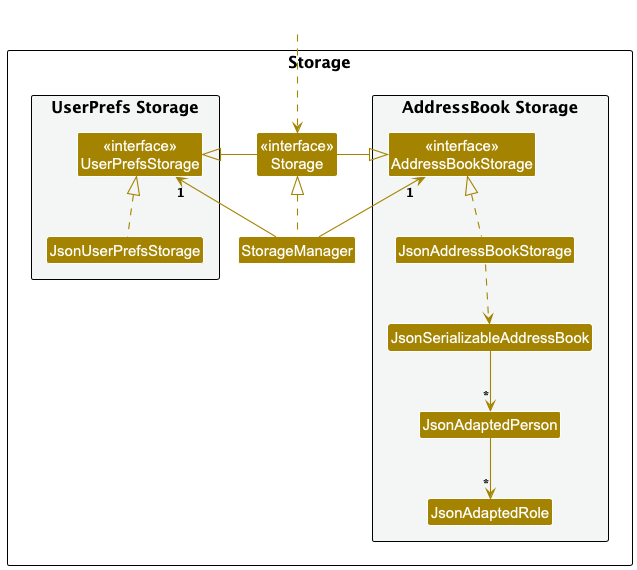
The Storage component,
- can save both address book data and user preference data in JSON format, and read them back into corresponding objects.
- inherits from both
AddressBookStorageandUserPrefStorage, which means it can be treated as either one (if only the functionality of only one is needed). - depends on some classes in the
Modelcomponent (because theStoragecomponent’s job is to save/retrieve objects that belong to theModel).
Common classes
Classes used by multiple components are in the seedu.address.commons package.
Implementation
This section describes some noteworthy details on how certain features are implemented.
Sort feature
Implementation
The sort command is reliant on the SortOrder enumeration.
Each constant in SortOrder contains 2 additional values: the keyword, and the stringRep (which is the string representation of the order).
The command itself is encapsulated by the SortCommand class, which extends the abstract class Command, overriding its execution method.
On execution, the SortCommand#execute() method calls the updateSortedPersonListComparator method of the model, and passes in the relevant comparator, depending on which order the user selects.
The following sequence diagram illustrates the sort mechanism:
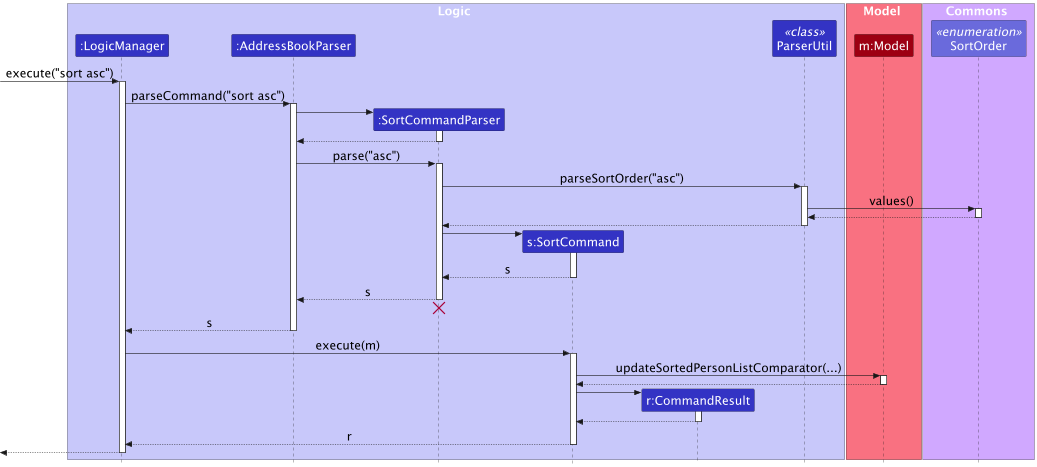
Note:The lifeline for
SortCommandParser should end at the destroy marker (X) but due to a limitation of PlantUML, the lifeline reaches the end of diagram.
Mark/Unmark feature
Implementation
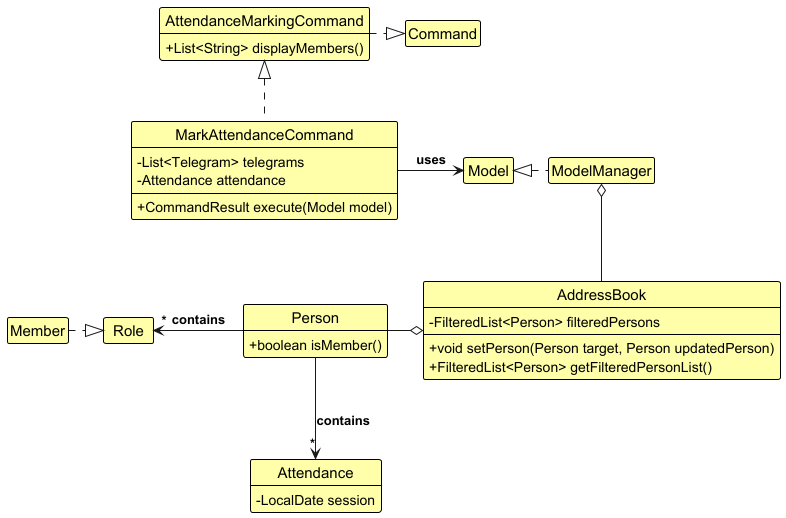
This command’s implementation is based on the new field attendance of Person object which stores the list of attendances
if the person is a member.
Given below is the class diagram of MarkAttendanceCommand and relative classes it uses to execute.
Find Targeted Member
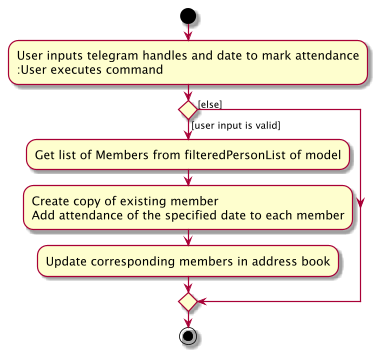
The command will call Model::getFilteredPersonList to get current contacts in addressbook,
then it filters the list by user input telegram handles, get a list of people by there telegrams to mark their attendance.
Update Member Attendance
The command will create a new Person object according to the Person referred by each of the input telegram handle,
add attendance to it, check if it is a member,
and call Model::setPerson to update the specified person in the addressbook of the model.
The following activity diagram summarizes what happens when a user executes a mark command:
The following sequence diagram shows how a mark operation goes through the Logic component:
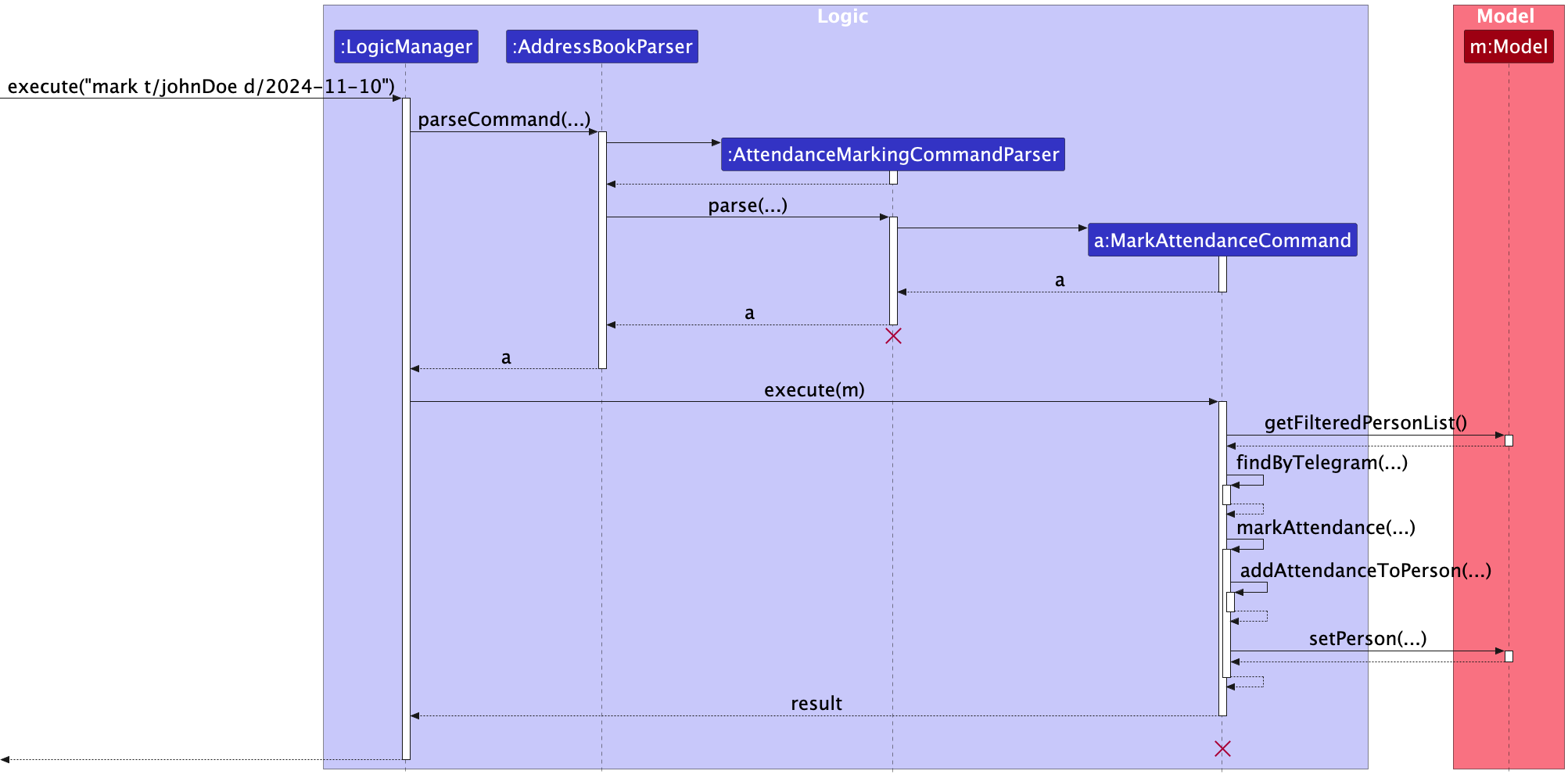
Note:The lifelines for
MarkAttendanceCommand and AttendanceMarkingCommandParser should end at their respective destroy markers (X) but due to a limitation of PlantUML, the lifeline reaches the end of diagram.
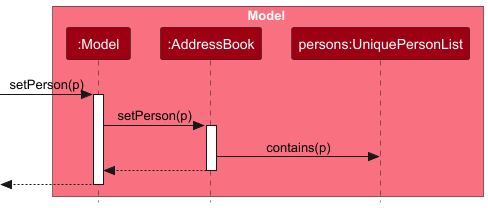
The unmark command does the opposite with the similar flow between Logic and Model component.
Find feature
Implementation
The find command relies on the various Predicate classes, each of which encapsulates specific criteria to determine whether a contact matches the search conditions. These Predicate classes enable flexible and modular search logic, allowing the find command to filter contacts based on attributes such as Name, Telegram, Role, FavouriteStatus.
The following sequence diagram shows how a find f/ command goes through both Logic component and interacts with Model:
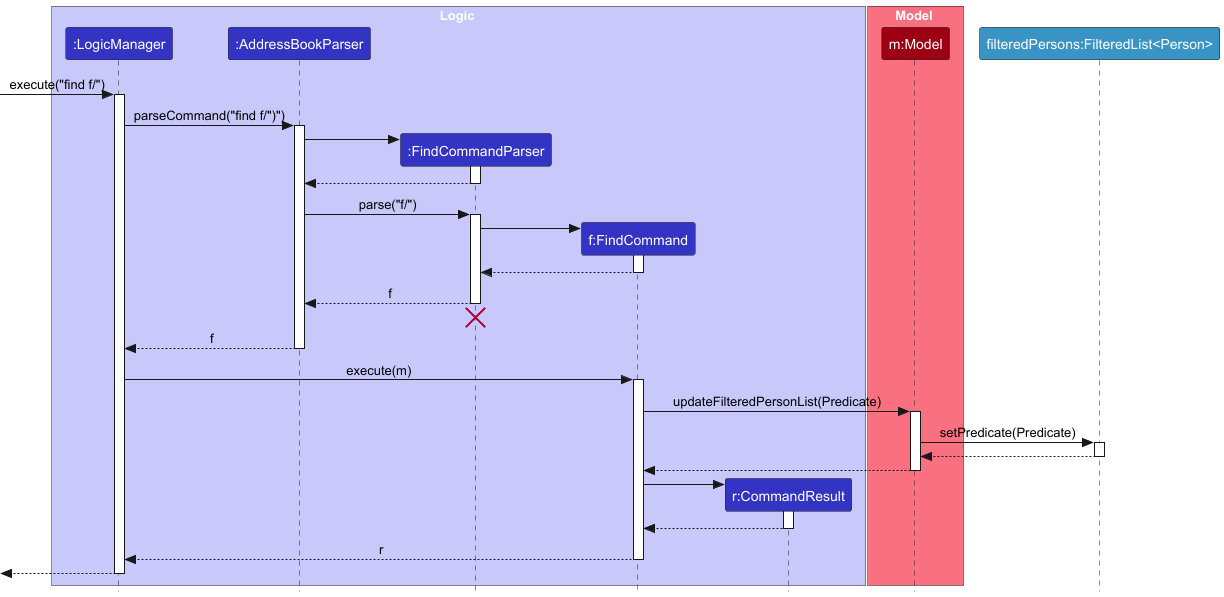
Note: The lifeline for FindCommandParser should end at the destroy marker (X) but due to a limitation of PlantUML, the lifeline reaches the end of diagram.
Switch Profile Feature
The switch command allows users to manage contacts with distinct contexts by switching between profiles. Each profile represents an independent contact list within the application which allows for better organization (e.g. ‘master-list’, ‘recreational-team’ etc.).
Implementation
The switch command follows the same pattern as other commands, using SwitchCommand to execute and SwitchCommandParser to parse its arguments. The switch command also rely on the Model component but uses it to track active and inactive profiles in the application’s memory (active profile is the profile currently in-use, inactive means the profile exists but not in-use). Each profile’s contact data is stored in individual JSON files in the data directory at the application’s root, and the profile names are recorded in preferences.json at the application’s root.
The following sequence diagram shows how the switch mechanism works:
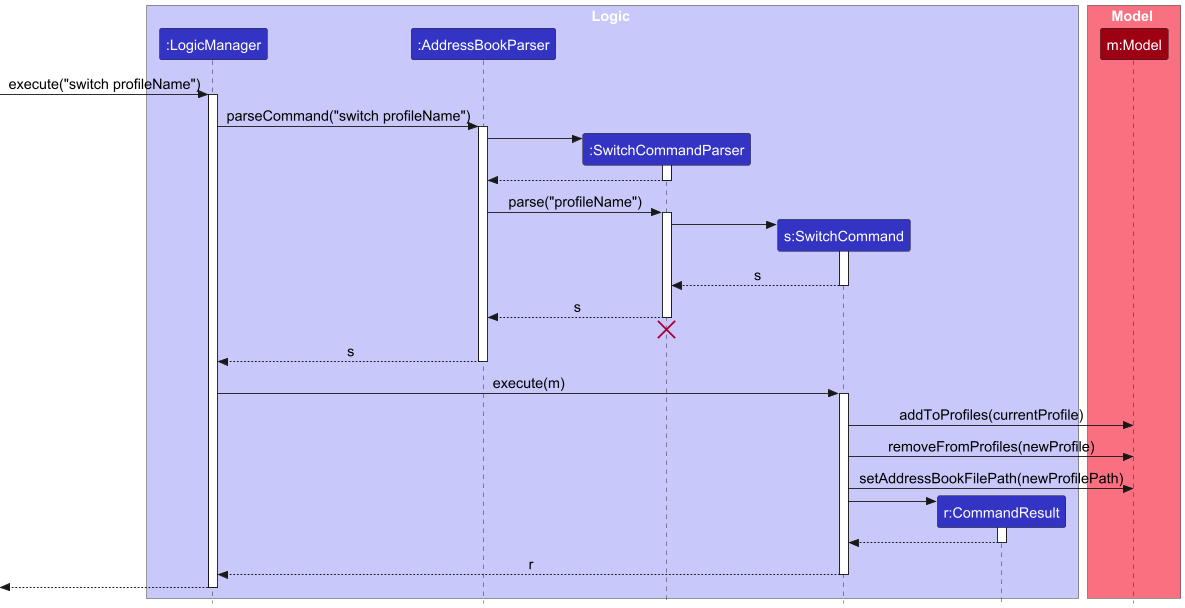
Note: The lifeline for SwitchCommandParser should end at the destroy marker (X) but due to a limitation of PlantUML, the lifeline reaches the end of diagram.
Core Methods
The following methods in the Model component are core to the switch command:
-
Model#addToProfiles(Profile profile): Adds the current profile to the inactive profiles list. -
Model#removeFromProfiles(Profile profile): Removes the new profile from the inactive list if it exists. -
Model#setAddressBookFilePath(Path filePath): Updates the application’s data file path to point to the new profile’s JSON file.
Command Execution
When a profile switch is initiated:
- In the
Modelcomponent:- The current profile is moved to the inactive profiles list.
- The new profile is removed from the inactive profiles if it exists.
- The
Modelupdates its data file path to reference the new profile’s JSON file.
- In the
LogicManagercomponent:- Control returns to
LogicManager, which updates the displayed contact list to reflect contacts in the active profile. - The application continues as normal, using the new profile.
- Control returns to
Profile File Creation
There are two instances where a profile’s JSON file will be created if it does not already exist:
- When any valid command is executed:
LogicManagerinitiates a method chain that results in theStoragecomponent handling the file creation for the current profile. - When the user exits the program: If the program is closed via the GUI’s ‘close’ button, then
MainWindowtriggers the file creation chain instead.
Design Considerations
Aspect: What key to store to identify a profile
- Alternative 1 (Current Choice): Identify by profile name
- Pros:
- Easy for developers to modify profile names rather than file paths.
- Reduces the risk of OS-dependent issues that may arise from handling file paths directly.
- Allows dynamic file path computation at runtime, offering flexibility for future extensions.
- Cons:
- Developers must ensure that the correct path is consistently computed, as any mismatch could lead to errors.
- Pros:
- Alternative 2: Identify by file path
- Pros:
- Could offer users more flexibility by allowing profile data to be stored in any directory.
- Cons:
- More keystrokes required of users, which is error-prone and not beginner-friendly
- Pros:
Documentation, logging, testing, configuration, dev-ops
Appendix: Requirements
Product scope
Target user profile:
- CCA leaders in NUS
- has a need to manage a significant number of contacts related to CCA day-to-day operations and upkeep
- needs to additionally track details like roles, names, emails, etc.
- prefer desktop apps over other types
- can type fast
- prefers typing to mouse interactions
- is reasonably comfortable using CLI apps
Value proposition: The program aims to assist CCA leaders in NUS in managing and collating relevant CCA personnel’s contact details. This is done via a clean user interface with a focus on the CLI, with fast access to the contact information of relevant CCA personnel, providing users a one-stop solution to help manage CCA manpower related considerations.
User stories
Priorities: High (must have) - * * *, Medium (nice to have) - * *, Low (unlikely to have) - *
| Priority | As a … | I want to … | So that I can… |
|---|---|---|---|
* * * |
user | add individual contacts | save the information of relevant contact and retrieve it when I want it |
* * * |
user | view all the information of a particular contact | focus on that one sole contact without distractions from other contacts |
* * * |
user | search for a contact by querying the saved name | get the information of the contact when needed |
* * * |
user | easily view the available commands on the app | easily find the usage for a command I had forgotten without internet |
* * * |
user | add new contacts with the few keystrokes | add new contacts efficiently |
* * * |
user | edit the details of a contact | keep the contact list up to date |
* * * |
user | delete a contact entry if needed | remove any individuals who are no longer relevant to my organisation |
* * |
user | sort the contacts by alphabetical order of their names | quickly scan through and find the relevant contact |
* * |
user | assign contacts to a group/role name | group individuals into relevant sections for better clarity |
* * |
user | search for multiple contacts by querying its role | get the information of all the contacts related to the relevant role |
* * |
user | mark attendance of several members on specific date | accurately record their participation status in CCA activities |
* * |
user | transfer my profile | easily access and use my profile on other machines |
* * |
user | see all members in a separate view | check members and mark their attendance more easily |
* * |
user | remove mark of attendance of several members on specific date | accurately record their participation status in CCA activities |
* * |
user | mark certain contacts as favourites | easily find and access frequently used contacts |
* |
user | sort the contact list based on how often I access each contact) | quickly find contacts I use most frequently without extensive searching |
* |
seasoned user | leverage compound and nested queries/commands | get the exact results that I require, in fewer commands |
* |
user | perform advanced searches using multiple criteria (e.g. role, last contact) | find specific contacts more efficiently |
* |
user | customise the appearance of my address book (e.g. colour schemes, themes…) | match my preferences |
Use cases
Notes: For all use cases below, the System is CCAConnect and the Actor is the user, unless specified otherwise
Use Case: UC01 - View John Doe’s Contact Information
Actor: User
MSS
- User enters appropriate ‘view’ command to search for John Doe’s contact information.
-
System opens up new page with John Doe’s contact information.
Use Case ends.
Extensions
- 1a. CCAConnect detects an error in the entered command information.
- 1a1. CCAConnect returns an error message.
- Steps 1a1 repeats till the user enters a valid and existing telegram handle for the command.
- Use case resumes from step 2.
Use Case: UC02 - Delete a contact
Actor: User
MSS
- User requests to list all contacts.
- CCAConnect shows a list of contacts.
- User requests to delete a specific contact at the list index.
-
CCAConnect deletes the contact.
Use Case ends.
Extensions
-
2a. The list is empty. Use Case ends.
-
3a. User inputs an invalid index.
- 3a1. CCAConnect shows an error message.
- Use Case resumes at step 2.
Use Case: UC03 - Add a contact
Actor: User
MSS
- User requests to add a contact.
- User provides the details of the contact, including fields like name, phone number, etc.
-
System adds the contact to the list of contacts and displays the contact as a new entry in the list of contacts viewable by the user.
Use Case ends.
Extensions
- 3a. System detects that user did not enter all the required fields.
-
3a1. System shows user an error message. Use Case ends.
-
3b. System detects that user entered an invalid field.
- 3b1. System shows user an appropriate error message.
Use Case ends.
- 3b1. System shows user an appropriate error message.
Use Case ends.
-
Use Case: UC04 - Search for a contact
Actor: User
MSS
- User searches the list of contacts with a query relating to a contact’s name.
-
System displays the subset of contacts with the same name as the query
Use Case ends.
Extensions
- 1a. User requests for a search, with no query.
-
1a1. System displays an error to the user.
Use Case ends.
-
2a. System fails to find any contacts related to the query.
- 2a1. System displays an empty list to the user.
Use Case ends.
- 2a1. System displays an empty list to the user.
Use Case ends.
-
Use Case: UC05 - List all contacts
Actor: User
MSS
- User enters ‘list’ command to view information of all contacts.
-
System opens up a new page with all contact information currently stored in data storage of CCAConnect.
Use Case ends.
Extensions
- 1a. CCAConnect detects an error in the entered command information.
- 1a1. CCAConnect returns an error message.
- Steps 1a1 is repeated till the user enters a valid list command.
- Use Case resumes from step 2.
Use Case: UC06 - View all commands
Actor: User
MSS
- User requests to see all the available commands.
-
CCAConnect displays all valid commands.
Use Case ends.
Use Case: UC07 - View all members
Actor: User
MSS
- User requests to see all members in the contacts.
-
CCAConnect displays all members.
Use Case ends.
Use Case: UC08 - Mark attendance of members
Actor: User
MSS
- User launches the application.
- User requests to mark the attendance of members.
- User provides the details of the session (date) to mark attendance, and list of telegrams of members to be marked.
-
System marks the attendance of the list of members on the specified date.
Use Case ends.
Extensions
-
1a. User checks all members in the contacts (UC07).
-
1b. User views profile of specific member (UC01) to pre-check their attendance status.
- 2a. System detects that user did not enter all the required fields.
- 2a1. System shows user an error message. Use Case ends.
- 2b. System detects that user entered an invalid field.
- 2b1. System shows user an appropriate error message. Use Case ends.
- 2c. System detects that user tried to mark the attendance of non-member contact.
- 2c1. System shows user an appropriate error message.
Use Case ends.
- 2c1. System shows user an appropriate error message.
Use Case ends.
Use Case: UC09 - Unmark attendance of members
Actor: User
MSS
- User launches the application.
- User requests to unmark the attendance of members.
- User provides the details of the session (date) to unmark attendance, and list of telegrams of members to be unmarked.
-
System unmarks the attendance of the list of members on the specified date.
Use Case ends.
Extensions
-
1a. User checks all members in the contacts (UC07).
-
1b. User views profile of specific member (UC01) to pre-check their attendance status.
- 2a. System detects that user did not enter all the required fields.
-
2a1. System shows user an error message.
Use Case ends.
-
- 2b. System detects that user entered an invalid field.
-
2b1. System shows user an appropriate error message.
Use Case ends.
-
- 2c. System detects that user tried to mark the attendance of non-member contact.
-
2c1. System shows user an appropriate error message.
Use Case ends.
-
Use Case: UC10 - Switch the profile
Actor: User
MSS
- User requests to switch to a different profile
-
CCAConnect swaps the current profile to the specified profile
Use Case ends.
Extensions
- 2a. The specified profile is invalid.
-
2a.1 CCAConnect shows an error message.
Use Case ends.
-
- 2b. The specified profile is the current profile.
-
2b.1 CCAConnect shows an error message.
Use Case ends.
-
Use Case: UC11 - Delete a profile
Actor: User
MSS
- User requests to delete a profile.
- CCAConnect deletes the specified profile. Use Case ends.
Extensions
- 2a. The specified profile is invalid.
- 2a.1 CCAConnect shows an error message. Use Case ends.
- 2b. The specified profile is the current profile.
- 2b.1 CCAConnect shows an error message. Use Case ends.
- 2c. The specified profile does not exist.
- 2c1. CCAConnect shows an error message. Use Case ends.
Non-Functional Requirements
- The system should work on any mainstream OS as long as it has Java
17or above installed. This primarily applies for Windows, MacOS and Linux. - The system should be able to hold up to 1000 persons without a noticeable sluggishness in performance for typical usage.
- A user with above average typing speed for regular English text (i.e. not code, not system admin commands) should be able to accomplish most of the tasks faster using commands than using the mouse.
- The system should be able to respond to user inputs within 2 seconds, under normal load conditions.
- The application is not required to support any other language other than English.
Glossary
- Mainstream OS: Windows, Linux, Unix, MacOS
-
Contact: A contact comprises a name, a phone number, an email, a telegram username and a role, represented as
Personin the model - CLI: Command Line Interface. This represents the interface where the user uses commands to communicate with the system
- GUI: Graphical User Interface. This represents the graphical interface that the user can interact with
- User: The individual using the app
- System: The CCAConnect application
-
Flag: A specifier to indicate the start of an argument after a command. E.g.
n/represents a name flag - Regex: A regular expression, which is a sequence of characters that specifies a match pattern
-
Member: A member is a special type of contact that has the role
Memberin itsroles - Profile: A collection of contacts in the system, identified by a profile name
Appendix: Instructions for manual testing
Given below are instructions to test the app manually.
Note: These instructions only provide a starting point for testers to work on;
testers are expected to do more exploratory testing.
Add Feature
Description: Adds a new contact to the list of contacts.
Test Case 1:
- Launch the application.
- Enter
add n/tester p/99999999 e/test@test.com t/test123 r/member.
Expected Result:
- The new contact is added to the list and displayed.
Test Case 2:
- Repeat steps 1 & 2 from Test Case 1.
- Enter invalid data (e.g., empty name, invalid email / phone number / telegram handle).
Expected Result:
- Relevant error message is displayed, indicating what the invalid input is, and guiding the user to enter the right input.
Edit Feature
Description: Edits an existing contact in the list.
Test Case 1:
- Identify the index of the contact you want to edit, for example,
1. - Enter
edit 1 n/New Name.
Expected Result:
- Contact at index
1has a new contact name,New Name.
Mark Feature
Description: Marks a (Member) contact as having attended a session.
Test Case 1:
- Identify the telegram handle of the Member you wish to mark attendance for (e.g.,
test123). - Enter
mark t/test123 d/YYYY-MM-DD, where YYYY-MM-DD is today’s date in the specified format.
Expected Result:
- Contact is marked as having attended today’s session, visually indicated with a checkmark in a box.
Unmark Feature
Description: Unmarks a (Member) contact as having attended a session.
Test Case 1:
- Identify the telegram handle of the Member you wish to mark attendance for (e.g.,
test123). - Enter
unmark t/test123 d/YYYY-MM-DD, where YYYY-MM-DD is today’s date in the specified format.
Expected Result:
- Contact is marked as having attended today’s session, visually indicated with an empty box.
Delete Feature
Description: Deletes a contact from the list.
Test Case 1:
- Identify the index of the contact you want to delete, for example,
1. - Enter
delete 1.
Expected Result:
- Contact at index
1is removed from the list.
Sort Feature
Description: Sorts the items in the list based on a specified criterion (asc, desc or og).
Test Case 1:
- Enter
sort asc.
Expected Result:
- The items in the list are sorted in ascending order (based on name).
Test Case 2:
- Enter
sort tallest.
Expected Result:
- Error message
Sort order parameter can only be asc or desc or og.displayed.
Find Feature
Description: Finds items in the list that match a specified search query.
Test Case 1:
- Identify criterion you wish to find contacts with (e.g.,
r/member). - Enter
find r/member.
Expected Result:
- Only contacts that have
Memberin their role are displayed.
View Feature
Description: Views the details of a selected item.
Test Case 1:
- Identify the telegram handle of the contact you wish to view (e.g.,
test123). - Enter
view t/test123.
Expected Result:
- The contact details of the specified contact are displayed.
Test Case 2:
- Identify invalid telegram handle you wish to view, e.g.
test(less than 5 characters) ortest!23(contains invalid character). - Enter
view t/testorview t/test!23.
Expected Result:
- Error message specifying exact error in telegram input displayed.
Switch Feature
Description: switches the current profile to the specified profile.
Test Case 1:
- Assuming the current profile is ‘addressbook’.
- Enter
switch alice.
Expected Result:
- The current profile is swapped to ‘alice’.
Test Case 2:
- Assuming the current profile is ‘addressbook’.
- Enter
switch addressbook.
Expected Result:
- Error message specifying that
Already on 'addressbook'.
Delete profile Feature
Description: Deletes an existing profile from the system.
Test Case 1:
- Assuming the profile ‘alice’ already exists.
- Enter
deleteProfile alice.
Expected Result:
- The profile ‘alice’ is removed.
Test Case 2:
- Assuming the current profile is ‘addressbook’.
- Enter
deleteProfile adressbook.
Expected Result:
- Error message specifying that
Unable to delete the profile currently in use. Please switch to a different profile before attempting deletion.
Test Case 3:
- Assuming the profile ‘alice’ does not exist.
- Enter
deleteProfile alice.
Expected Result:
- Error message specifying that
Profile not found. Unable to delete a non-existing profile.
General Testing Notes
- Ensure to test each feature with both valid and invalid inputs.
- Check for proper handling of edge cases, such as extremely large or small input values.
- Verify that the UI updates correctly and reflects the changes made by each feature.
- Confirm that error messages and prompts are displayed appropriately for invalid operations.
Appendix: Planned Enhancements
Team Size: 5
-
Make
sortsuccess message more specific:
The current success message forsortdoes not distinguish between cases where there are contacts in the list, and the case where there are no contacts in the list. E.g. If a user executessorton an empty contact list, the standardsortsuccess message is displayed. Even though this is vacuously true, we plan to make the displayed message when there are no contacts in the contact list more specific:There are no contacts to be sorted. -
Increase specificity of
Invalid Emailerror message:
The current error message for theemailfield inaddandeditidentifies the possible issues with the entered email, but does not specifically identify which part of the email input is violated. We plan to make the error message more specific to let the user know of which exact part (e.g.local-partordomain) the email input is invalid. -
Increase length tolerance for
role:
Currently, therolefield is restricted to a maximum of 20 characters. This was done to prevent clutter in the UI, since the team felt that it was sufficient at this point to impose a restriction that should not affect the vast majority of named roles. In the future, we plan to implement UI truncation measures to allow for users to specify roles that are longer than the current limit. -
Update error message of
markandunmarkcommand when input contains telegram of non-member contact:
The current error message just warns user the input contains non-member telegram handle. We plan to list the name of the non-member contacts in error message for more convenient marking in the next step. -
Add new command to view attendance of all members by date:
Currently, there is no functionality that lets users view members’ attendance by date. We plan to implement such a command in the future, to improve search efficiency. -
Increase specificity of error message when an invalid index is used for
editcommand:
The current error message when an invalid index is passed as an argument toeditcommand is ‘invalid command format …’, which we plan to change in order to inform users that specifically their input index is invalid.