User Guide
CCAConnect
CCAConnect is a desktop application that aims to assist NUS CCA leaders in managing and collating relevant CCA personnel’s contact details, as well as to help track attendance details for CCA sessions. Equipped with features like attendance marking, contact management, contact filtering and profile switching, CCAConnect helps to reduce the headaches of personnel tracking.
Table of Contents
- Table of Contents
- Quick start
-
Features
-
Viewing help:
help -
Adding a person:
add -
Listing all persons:
list -
Editing a person:
edit -
Locating persons:
find -
Sorting the contacts:
sort -
Deleting a person:
delete -
Listing all members for attendance :
attendance -
Marking attendance:
mark -
Unmarking attendance :
unmark -
Clearing all entries:
clear -
Viewing a specific contact:
view -
Exiting the program:
exit -
Switching a profile :
switch -
Deleting a profile:
deleteProfile - Saving the data
- Editing the files
-
Viewing help:
- FAQ
- Known issues
- Command summary
- Glossary
Quick start
-
Ensure you have Java
17or above installed in your Computer. How to check? -
Download the latest
ccaconnect.jarfile from here. -
Copy the file to the folder you want to use as the home folder for CCAConnect. This folder will also be used by CCAConnect to store data. For example, if you put
ccaconnect.jarin a folder namedCCA, thenCCAwill be the home folder. -
Open a command terminal, and change the current working directory to the folder where
ccaconnect.jarwas placed in.Example:
On Mac/Linux, if you placedccaconnect.jarin the~/Desktop/CCAfolder, type in the following command:cd ~/Desktop/CCAExample:
On Windows, if you placedccaconnect.jarin theC:\Users\User1\Desktop\CCAfolder, type in the following command:cd C:\Users\User1\Desktop\CCA - Launch the CCAConnect application by typing in the following command:
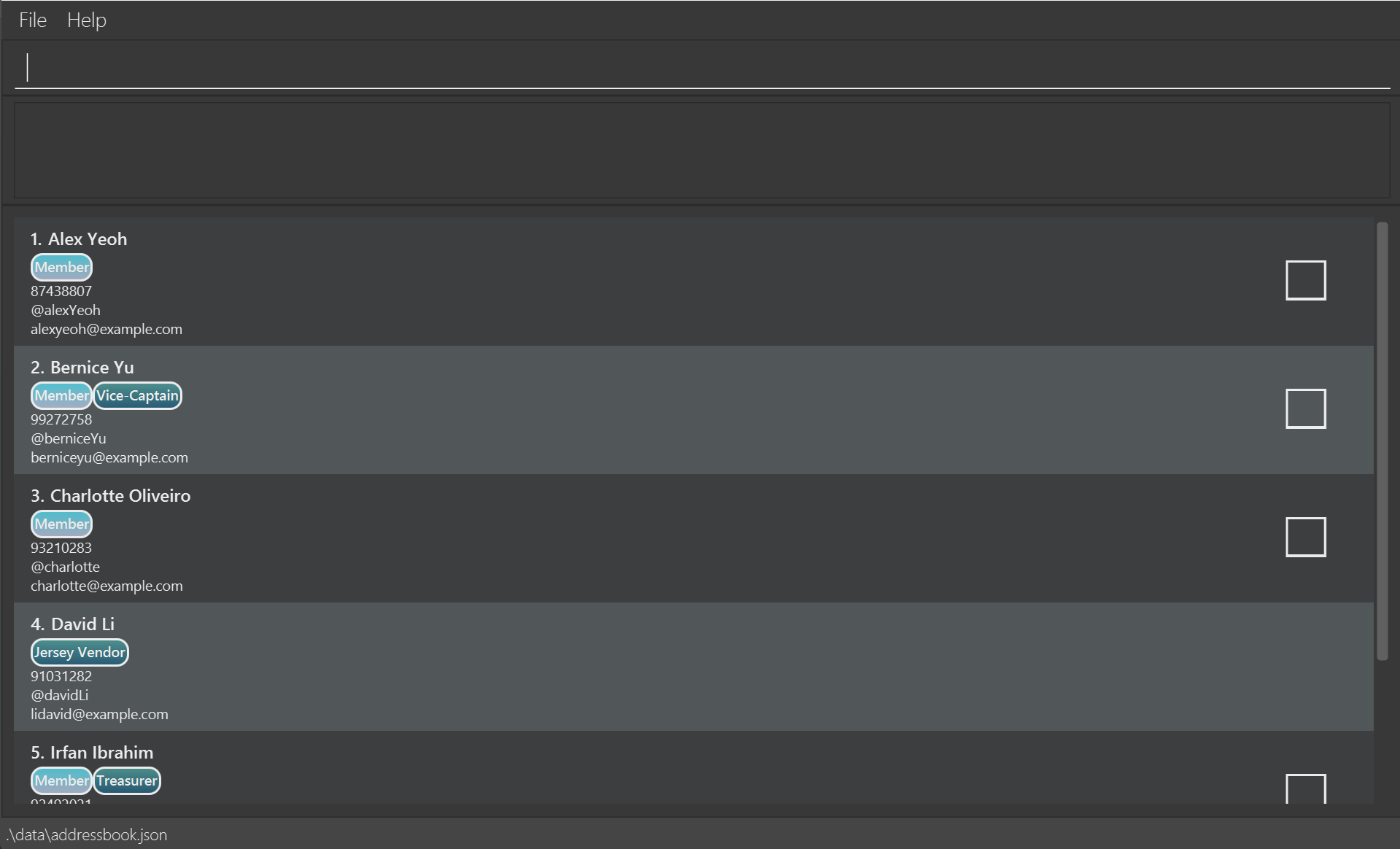
java -jar ccaconnect.jarA GUI similar to that given below should appear in a few seconds. Note that the app contains some sample data.
-
Type the command in the command box and press Enter to execute it. e.g. typing
helpand pressing Enter will open the help window.
Some example commands you can try:-
list: Lists all contacts. -
add n/John Doe p/98765432 e/johnd@example.com t/johnDoe: Adds a person namedJohn Doe, with those specified information. -
delete 1: Deletes the 1st contact shown in the current list. -
clear: Deletes all contacts stored in the current profile. -
exit: Exits the app.
-
- Refer to the Features below for details of each command, and check the Glossary if you need a reminder on any terms.
Features
 Notes about the command format:
- Words in
UPPER_CASEare the parameters to be supplied by the user.
- e.g. in
add n/NAME,NAMEis a parameter which can be used asadd n/John Doe p/98765432 e/johnd@example.com t/johnDoe12 r/Exco Member f/.
- e.g. in
- Items in square brackets are optional.
- e.g
n/NAME [r/ROLE]can be used asn/John Doe r/excoor asn/John Doe.
- e.g
- Items with
… after them can be used multiple times. If the item is optional, e.g.[r/ROLE]…, it can also be used zero times
- e.g.
[r/ROLE]…can be used asr/exco,r/member r/excoetc.
- e.g.
- Parameters can be in any order.
- e.g. if the command specifies
n/NAME p/PHONE_NUMBER,p/PHONE_NUMBER n/NAMEis also acceptable.
- e.g. if the command specifies
- The parameter prefixes (e.g.
n/) with leading spaces are considered restricted keywords, and may not be present within existing parameters. However, for parameters that allow/, using parameter prefixes without a leading space within the parameter (e.g.n/awithinROLE) is allowed.
 Caution:
If you are using a PDF version of this document, be careful when copying and pasting commands that span multiple lines as space characters surrounding line-breaks may be omitted when copied over to the application.
Viewing help: help
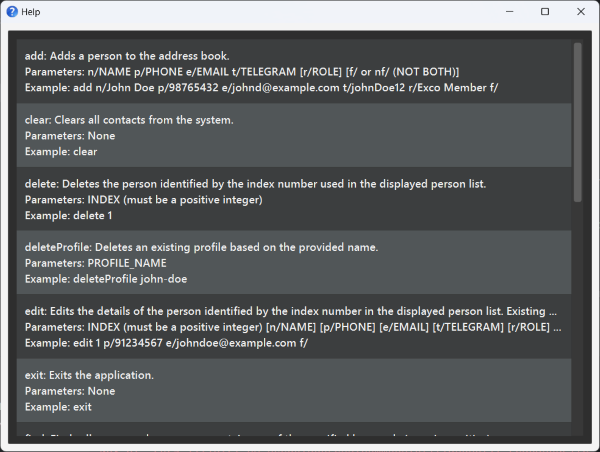
Opens a new window that displays a list of all available commands along with their usage instructions.
Format
help
Adding a person: add
Adds a person to the address book.
Format
add n/NAME p/PHONE_NUMBER e/EMAIL t/TELEGRAM [r/ROLE]… [f/ or nf/ (NOT BOTH)]
Alias
a can be used in place of add.
Parameters
| Parameter | Prefix | Compulsory? | Remarks |
|---|---|---|---|
NAME |
n/ |
Yes | Represents the name of a contact. Should contain non-numeric characters and spaces, and should not be blank. |
PHONE_NUMBER |
p/ |
Yes | Represents the phone number of a contact. Should be a valid Singapore phone number (i.e. have 8 digits and start with 3, 6, 8, or 9), and only contain digits with no spaces. |
EMAIL |
e/ |
Yes | Represents the email of a contact.EMAIL should be of the format local-part@domain, and adhere to the following constraints:1. The local-part should only contain alphanumeric characters and these special characters (+ _ % . -), excluding the parentheses. The local-part may not start or end with any special characters. 2. This is followed by an ‘@’, and then a domain name. The domain name is made up of domain labels, separated by periods. The domain name must: - end with a domain label at least 2 characters long - have each domain label start and end with alphanumeric characters - have each domain label consist of alphanumeric characters, separated only by hyphens, if any. |
TELEGRAM |
t/ |
Yes | Represents the telegram handle of a contact. Should be alphanumeric characters, and be between 5-32 characters long. |
ROLE |
r/ |
No | Represents the role(s) held by the contact. Should be between 1-20 characters long. |
f/ |
No | Represents the favouriting of a contact. This keyword should be included only if you intend for this contact to be a favourite contact. |
|
nf/ |
No | Represents the unfavouriting of a contact. This keyword can be excluded if you intend for this contact to not be a favourite contact. |
Note:A person is uniquely identified by his/her telegram handle.
E.g. Once a person with telegram handle
alexYeoh is added, no other contacts can be created with alexYeoh as the telegram handle. Note:Valid telegram handles follow the requirements set by Telegram. See link.
Since Telegram treats their handles as case-insensitive, CCAConnect also treats the telegram field as case-insensitive.
 Tip:
Tip:A person can have any number of roles (including 0).
Tip:Member is a special reserved role in CCAConnect. Attendance related commands will only work for contacts that have the Member role.
When adding/editing a person with the role of Member, the spelling of Member in r/Member is case-insensitive. E.g. r/mEmBER will also set the person to be a Member.
Example
add n/John Doe p/98765432 e/johnd@example.com t/johnDoe12a n/Betsy Crowe r/chairperson e/betsycrowe@example.com t/betsyC p/81234567 r/member f/
Listing all persons: list
Shows a list of all persons in the address book.
This can be used to reset the list of contacts back to its unfiltered state.
Format
list
Alias
l can be used in place of list.
Editing a person: edit
Edits an existing person in the address book.
Format
edit INDEX [n/NAME] [p/PHONE] [e/EMAIL] [t/TELEGRAM] [r/ROLE]… [f/ or nf/ (NOT BOTH)]
Alias
e can be used in place of edit.
Parameters
| Parameter | Prefix | Compulsory? | Remarks |
|---|---|---|---|
INDEX |
Yes | Edits the person at the specified INDEX.The index refers to the index number shown in the displayed person list. It must be a non-zero unsigned integer and must not exceed the size of the displayed contact list. |
|
NAME |
n/ |
No | Represents the name of a contact. Should contain non-numeric characters and spaces, and should not be blank. |
PHONE_NUMBER |
p/ |
No | Represents the phone number of a contact. Should be a valid Singapore phone number (i.e. have 8 digits and start with 3, 6, 8, or 9), and only contain digits with no spaces. |
EMAIL |
e/ |
No | Represents the email of a contact.EMAIL should be of the format local-part@domain, and adhere to the following constraints:1. The local-part should only contain alphanumeric characters and these special characters (+ _ % . -), excluding the parentheses. The local-part may not start or end with any special characters. 2. This is followed by an ‘@’, and then a domain name. The domain name is made up of domain labels, separated by periods. The domain name must: - end with a domain label at least 2 characters long - have each domain label start and end with alphanumeric characters - have each domain label consist of alphanumeric characters, separated only by hyphens, if any. |
TELEGRAM |
t/ |
No | Represents the telegram handle of a contact. Should be alphanumeric characters, and be between 5-32 characters long. |
ROLE |
r/ |
No | Represents the role(s) held by the contact. Should be between 1-20 characters long. When editing roles, the existing roles of the person will be removed. I.e. Adding of roles is not cumulative. |
f/ |
No | Represents the favouriting of a contact. This keyword should be included only if you intend for this contact to be a favourite contact. |
|
nf/ |
No | Represents the unfavouriting of a contact. This keyword should be included only if you intend for this contact to be unfavourited. |
- At least one of the optional fields must be provided.
- Existing values will be updated to the input values.
- Only one of
f/ornf/should be present in the command at once, not both.
Tip:You can remove all the person’s roles by typing
r/ without specifying any roles after it.
Example
-
edit 1 p/91234567 e/johndoe@example.comEdits the phone number and email address of the 1st person to be91234567andjohndoe@example.comrespectively. -
edit 2 n/Betsy Crower r/Edits the name of the 2nd person to beBetsy Crowerand clears all existing roles.
Note:Recorded attendances for previous “Member” contacts are not wiped to allow for future reference and verification of participation. It is also important for tracking overall attendance trends and patterns over time.
Locating persons: find
Search for contact(s) whose contact details satisfy either of the following:
- Name contains any of the given name keyword(s)
- Has a role stated by any of the role keyword(s)
- Telegram handle which matches exactly with any of the given telegram keyword(s)
- Is a favourite contact
Format
find [n/NAMEKEYWORD]… [r/ROLEKEYWORD]… [t/TELEGRAMKEYWORD]… [f/]
When using
find, at least one of the optional parameters must be included.
Alias
f can be used in place of find.
Parameters
| Parameter | Prefix | Compulsory? | Remarks |
|---|---|---|---|
NAMEKEYWORD |
n/ |
No | Represents the name to be searched.NAMEKEYWORD can be a partial match for the name. |
ROLEKEYWORD |
r/ |
No | Represents the role to be searched.ROLEKEYWORD has to match exactly with the role. Contacts with roles matching at least one ROLEKEYWORD will be returned. |
TELEGRAMKEYWORD |
t/ |
No | Represents the telegram handle to be searched.TELEGRAMKEYWORD has to match exactly with the telegram handle. |
f/ |
No | Represents finding all contacts that have been favourited. |
- The search is case-insensitive for all parameters. E.g
hanswill matchHans. - Persons matching at least one keyword will be returned (i.e.
ORsearch).
Tip:Invalid parameters will be accepted and 0 people will be returned.
Example
Usage: Find by name
-
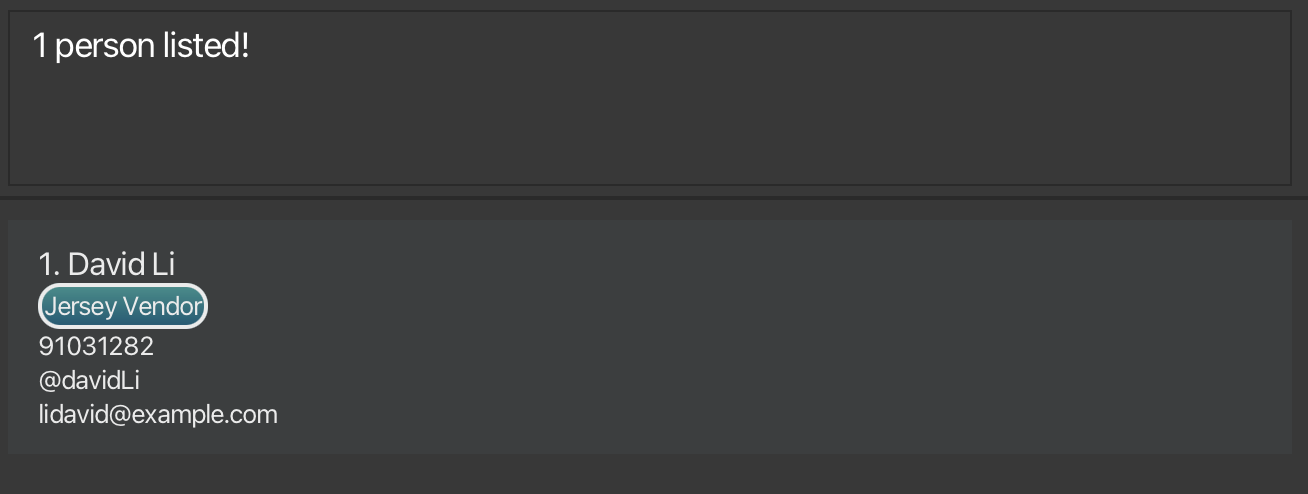
find n/davidreturnsDavid Li.
Usage: Find by role
-
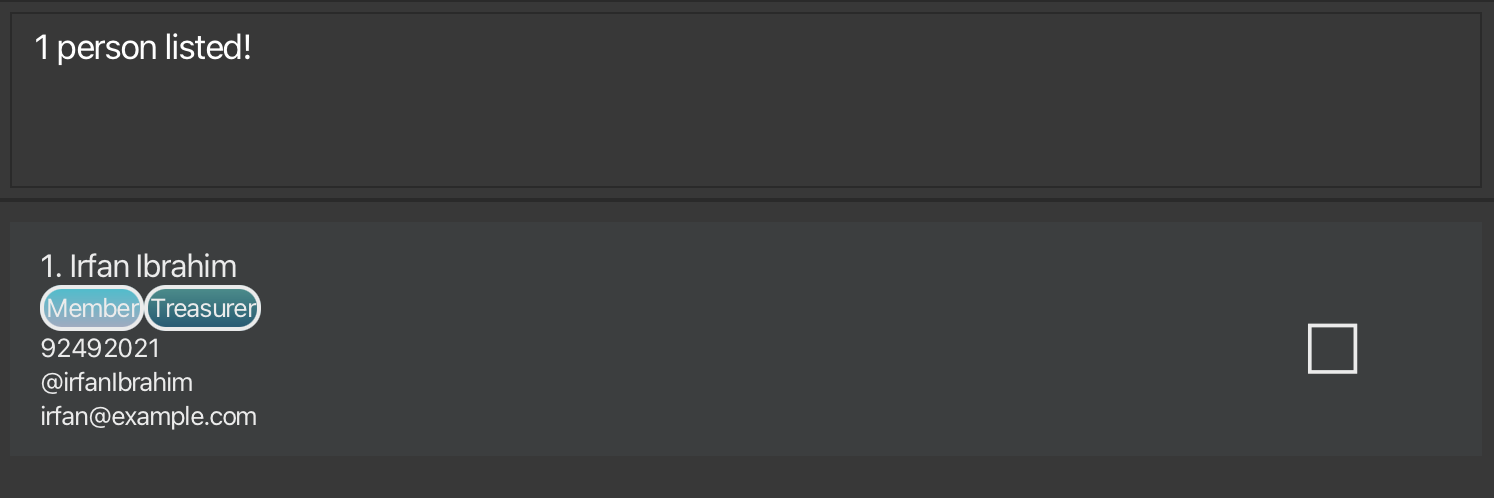
find r/treasurerreturnsIrfan Ibrahimwho has a roleTreasurer.
Usage: Find by telegram
-
find t/alexyeohreturnsAlex Yeohwho has the telegram handlealexYeoh.
Usage: Find by favourite
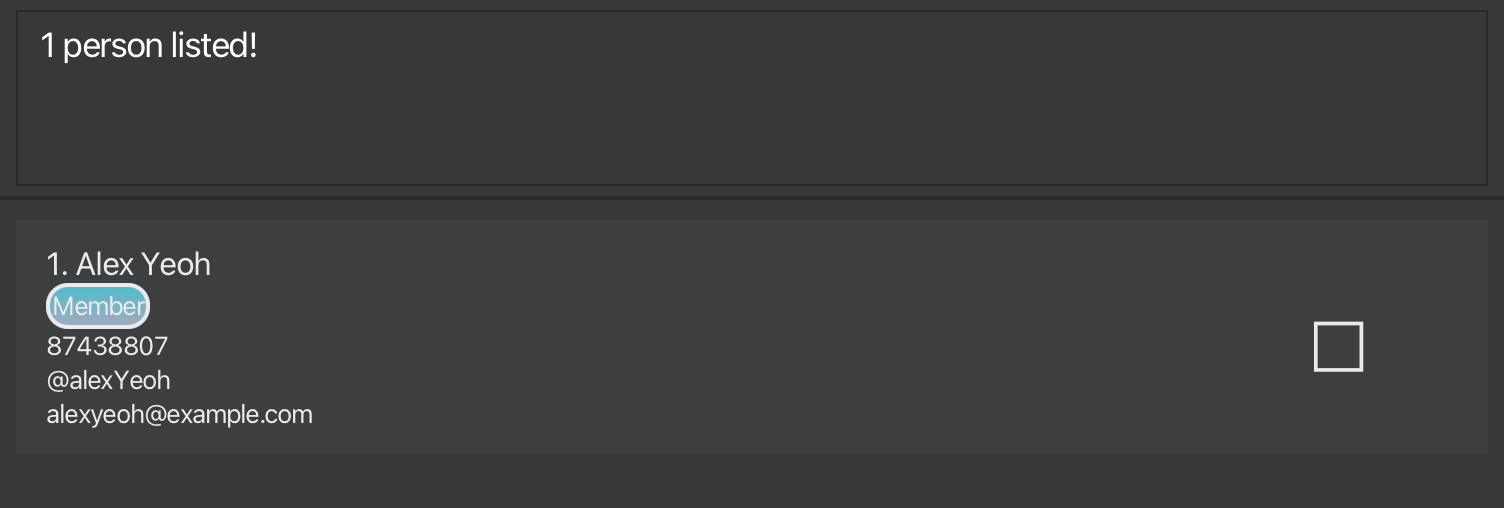
-
find f/returns 1 favourite contact.
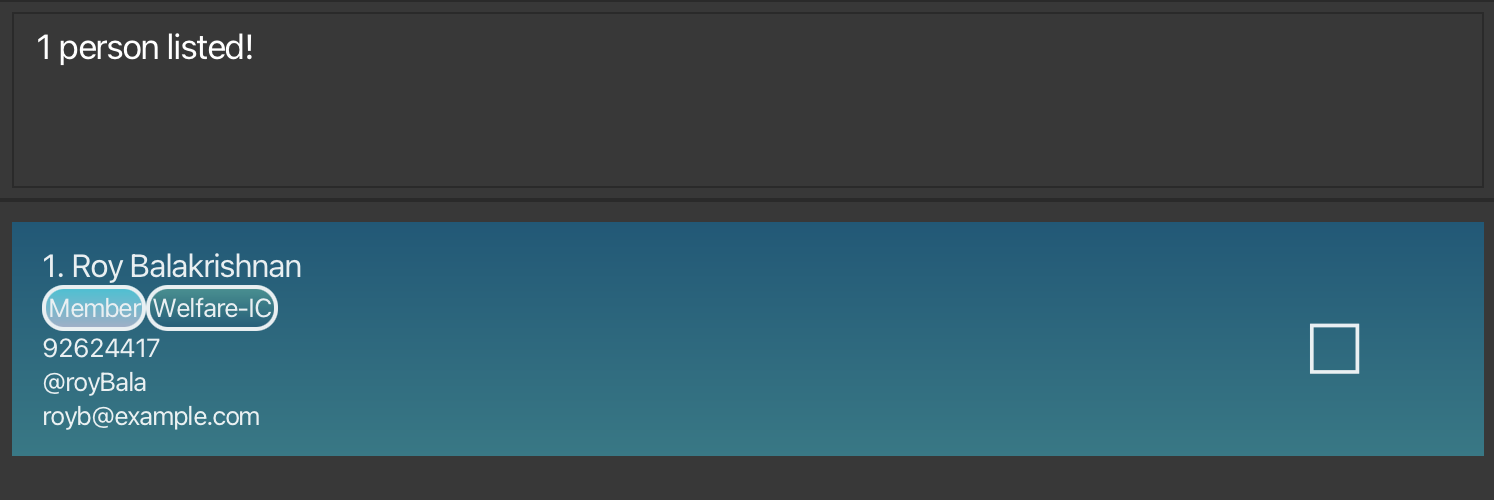
Usage: Find composition
Composing all 4 types of search will give an OR search, a contact that has at least one matching criteria will be returned.
-
find n/david f/returns all contacts with a name that partially matchesdavid, OR are favourited contacts.
Sorting the contacts: sort
Sorts the list of contacts by name, in a user-specified order.
Sorting works together with the find command, meaning that if you sort after reducing the number of listed contacts, the sorting occurs for those listed contacts.
Note:sort orders the list of contacts in alphabetical order of their names, and this action is case-insensitive.E.g. The letters
A and a will both be treated as a.Symbols will be sorted according to the ordering specified by the American Standard Code of Information Interchange (ASCII).
E.g. With ascending sort,
{ will be ordered behind the alphabets, since that is its position on the ASCII table
Format
sort ORDER
Alias
so can be used in place of sort.
Parameters
| Parameter | Prefix | Compulsory? | Remarks |
|---|---|---|---|
ORDER |
Yes |
ORDER can only take the form of 3 possible options:asc - sorts by name in ascending order. desc - sorts by name in descending order. og - sorts by name in the original order, based on the initial positioning of the contacts. |
Example
-
sort ascsorts the current list of contacts by name, in ascending order
Deleting a person: delete
Deletes the specified person from the address book.
Format
delete INDEX
Alias
d can be used in place of delete.
Parameters
| Parameter | Prefix | Compulsory? | Remarks |
|---|---|---|---|
INDEX |
Yes | Deletes the person at the specified INDEX.It must be a non-zero unsigned integer and must not exceed the size of the displayed contact list. |
- The index refers to the index number shown in the displayed person list. This can change having previously used commands such as
findorsort.
Examples
-
listfollowed bydelete 2deletes the 2nd person in the address book. -
find n/Betsyfollowed bydelete 1deletes the 1st person in the results of thefindcommand.
Listing all members for attendance : attendance
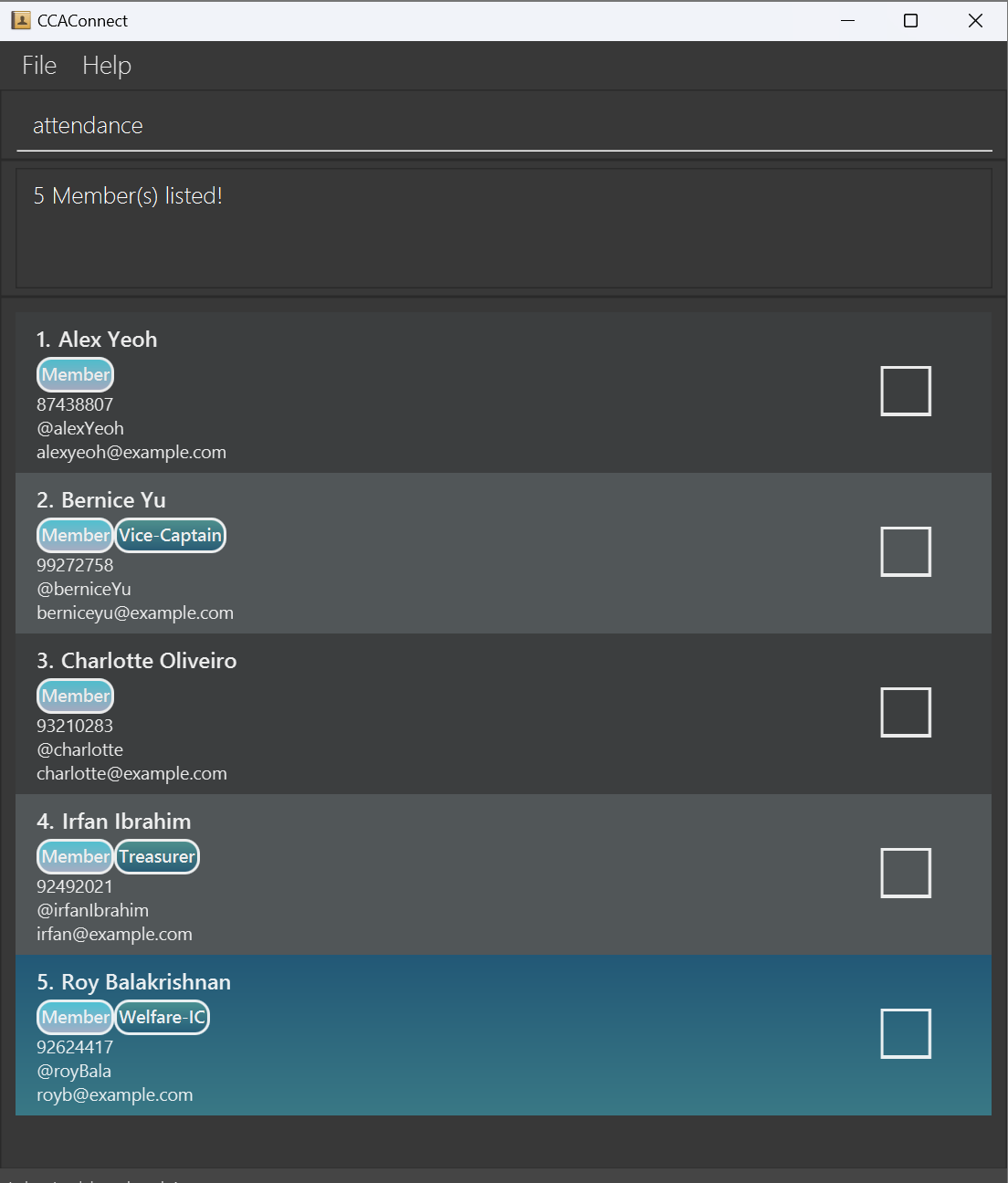
Lists all contacts that have the role “Member” in the address book, making it easier to check and mark attendance for them directly.
Format
attendance
Alias
atd can be used in place of attendance.
Parameters
This command does not take any additional parameters.
Example
attendance
Marking attendance: mark
Marks attendance for members with specified Telegram handles on a specific date.
Format
mark t/TELEGRAM… d/DATE
Alias
m can be used in place of mark.
Parameters
| Parameter | Prefix | Compulsory? | Remarks |
|---|---|---|---|
TELEGRAM |
t/ |
Yes |
TELEGRAM must match exactly alphabetically to the telegram handle of the contact that is being marked. Note that TELEGRAM is not case-sensitive.mark accepts multiple handles separated by spaces, each beginning with t/. E.g. ... t/usera t/userb ....Only telegram handles of contacts with the role of Member can be marked.
|
DATE |
d/ |
Yes |
DATE follows ISO 8601 standard with the format YYYY-MM-DD, e.g. 2024-10-19, and should be an actual date no later than the current date. If multiple dates are included in the command, only the last one will be recorded as the attendance date. |
Example
Please note the following code will display a different GUI if used on a different day (other than 7th November 2024).
-
mark t/alexYeoh t/berniceYu d/2024-11-07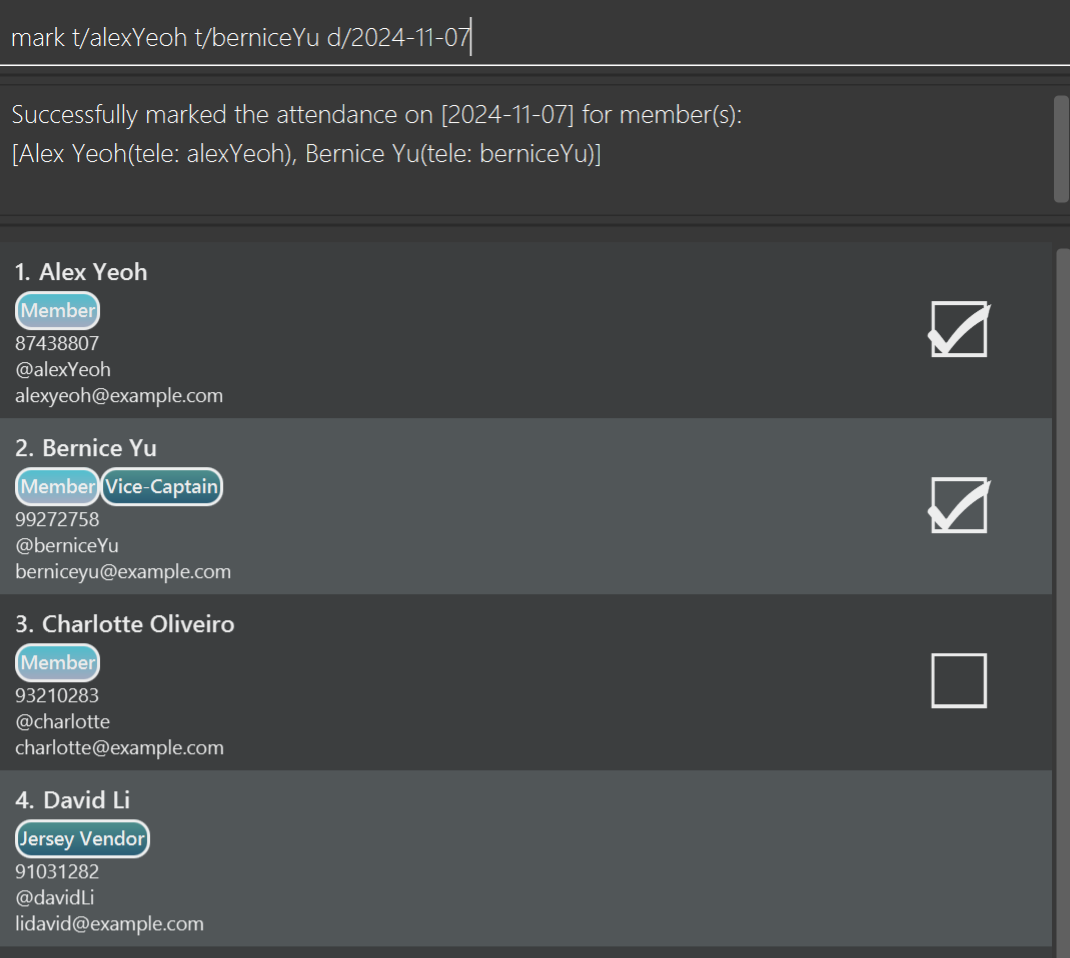
Note:
-
If the input date matches the current date, the checkbox for marked members will be automatically selected upon successful attendance marking.
-
If the input telegrams include members who have already been marked on input date, the result will remind user of these repeatedly marked members while still marking other members as usual.
Note:Do not be alarmed if your checkbox looks different from the one displayed in the examples. The checkbox styling depends on your current operating system, and have no impact on CCAConnect’s functionality.
Unmarking attendance : unmark
Unmarks attendance for members with specified Telegram handles on a specific date.
Format
unmark t/TELEGRAM… d/DATE
Alias
um can be used in place of unmark.
Parameters
| Parameter | Prefix | Compulsory? | Remarks |
|---|---|---|---|
TELEGRAM |
t/ |
Yes |
TELEGRAM must match exactly alphabetically to the telegram handle of the contact that is being marked. Note that TELEGRAM is not case-sensitive.mark accepts multiple handles separated by spaces, each beginning with t/. E.g. ... t/usera t/userb ....Only telegram handles of contacts with the role of Member can be marked.
|
DATE |
d/ |
Yes |
DATE follows ISO 8601 standard with the format YYYY-MM-DD, e.g. 2024-10-19, and should be an actual date no later than the current date. If multiple dates are included in the command, only the last one will be recorded as the attendance date. |
Example
-
unmark t/alexYeoh t/berniceYu d/2024-11-10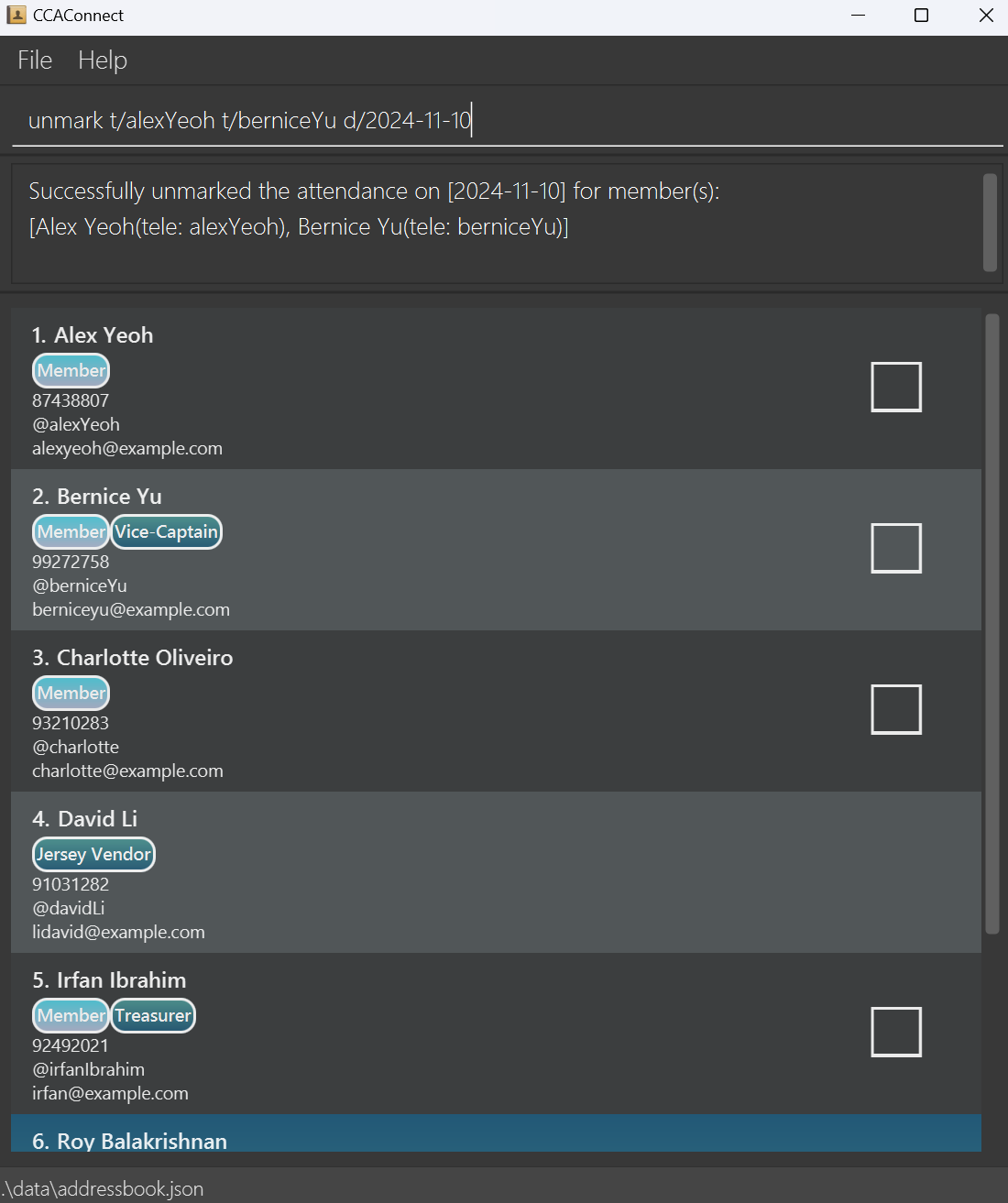
Note:
-
If the input date matches the current date, the checkbox for previously marked members will be automatically cleared upon successful attendance unmarking.
-
If the input telegrams include members who have already been unmarked on input date, the result will remind user of these repeatedly unmarked members while still unmarking other members as usual.
Clearing all entries: clear
Clears all entries from the address book.
Caution:This action permanently deletes all the entries from the address book! Use with extreme caution.
Format
clear
Alias
c can be used in place of clear.
Viewing a specific contact: view
Views all the contact information of the specified contact.
Format
view t/TELEGRAM
Parameters
| Parameter | Prefix | Compulsory? | Remarks |
|---|---|---|---|
TELEGRAM |
t/ |
Yes |
TELEGRAM must match exactly alphabetically to the telegram handle of the contact that is being marked. Note that TELEGRAM is not case-sensitive.Multiple t/ entries are accepted, but all t/ entries except for the terminating t/ entry will be disregarded. |
Example
-
view t/bob12displays page containing all the information of the person with telegram handle@bob12.
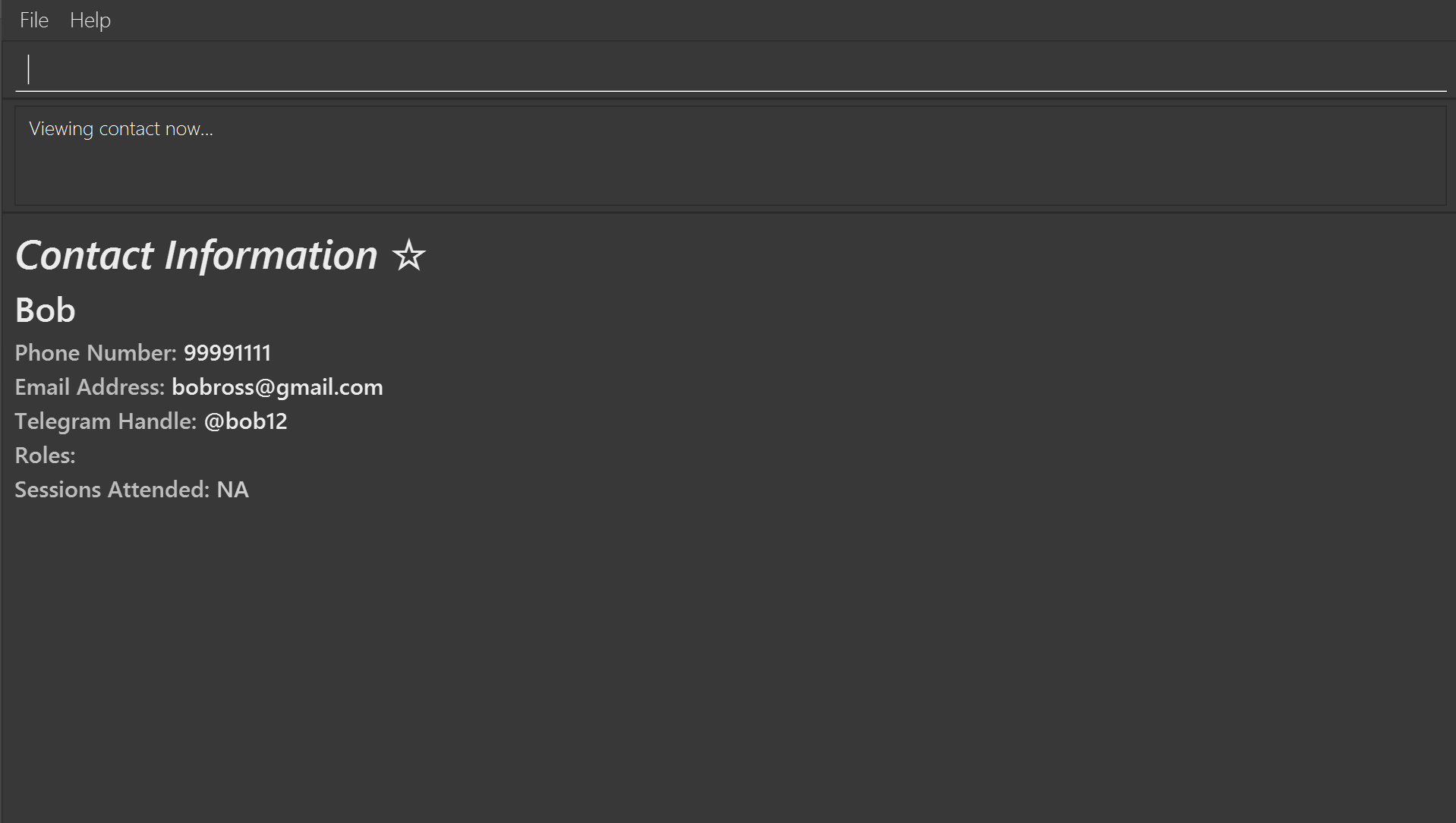
Note:The use of any other commands (other than another
view command) will close the view page and revert back to the list of contacts!
Exiting the program: exit
Safely exits the program.
Format
exit
To ensure data is saved properly, always use the
exit command or the window’s close button to exit. Using any unintended exit methods may lead to data loss.
Switching a profile : switch
The switch command offers an alternative way to organize your contacts by creating separate profiles, each tailored to a specific context or purpose.
Each profile has its own independent set of contacts, allowing you to freely modify the data of one profile without affecting others.
For instance, you may create a ‘competition-team’ profile to keep track of personnel involved in an upcoming competition, and quickly switch between it and your main profile to view the participants.
Format
switch PROFILE
Alias
sw can be used in place of switch.
Parameters
| Parameter | Prefix | Compulsory? | Remarks |
|---|---|---|---|
PROFILE |
Yes |
PROFILE specifies the profile that switch will attempt to switch to.PROFILE must be between 1 and 30 characters, and can only contain letters (a-z, A-Z), numbers (0-9), hyphens (-), and underscores (_).PROFILE names are case-insensitive and treated as lowercase. |
Tip:If the specified
PROFILE does not already exist, switch will create it; otherwise, it will switch to the existing profile.
Example
-
switch competition-teamswitches to a profile named ‘competition-team’ -
sw ALL-CAPSswitches to a profile named ‘all-caps’
Tip:The current profile is indicated at the bottom left window.
 Tip:
Tip:The most recent sort and find settings (referred to as “active settings”) are automatically applied when you switch profiles, enhancing search efficiency by removing the need to reapply them after each switch. For example, if you use
find f/ in the ‘addressbook’ profile to view favourite contacts, this “find favourite “ filter will stay active when you switch to another profile like ‘competition-team’, until a different valid command (except switch) is issued which removes this active setting.
Deleting a profile: deleteProfile
The deleteProfile command removes an existing profile from the system.
Format
deleteProfile PROFILE
Alias
delp can be used in place of deleteProfile.
Parameters
| Parameter | Prefix | Compulsory? | Remarks |
|---|---|---|---|
PROFILE |
Yes |
PROFILE specifies the profile that deleteProfile will attempt to delete.PROFILE must meet all requirements from the switch command, and should be an existing profile. Additionally, PROFILE must not refer to the currently active profile (the profile you’re on). |
Example
This is a logical sequence of commands, assuming your current profile is ‘addressbook’:
-
deleteProfile addressbookis not allowed because ‘addressbook’ is the active profile. -
sw aliceswitches the current profile to ‘alice’ -
delp addressbookdeletes the ‘addressbook’ profile after switching to ‘alice’
Tip:Profile data is only permanently deleted from the hard disk when the application is closed. If you accidentally delete a profile, you can recover it by switching back to that profile before exiting the application. This allows you to undo accidental deletions during the same session.
Saving the data
CCAConnect data are saved in the hard disk automatically when the application is closed. There is no need to save manually.
Editing the files
Caution:Modifying (Creating, Editing, Deleting) any files used by CCAConnect—such as those in the
data folder or the preferences.json file—can lead to data loss or cause the program to behave unexpectedly. Only experienced users should attempt these changes outside of the CCAConnect app. Beginners should make any file changes only through the CCAConnect app to keep the program stable and avoid potential issues.
CCAConnect contact data is automatically saved as individual JSON files in the data folder located in the home folder, and profile data is saved in the preference.json file in the home folder. For example, if your home folder is CCA then data folder is located at CCA/data/ and profile data file is saved in CCA/preferences.json. Advanced users are welcome to edit the files directly, while beginners should rely on CCAConnect app for any modifications.
FAQ
Q: How do I transfer my data to another computer?
A: To transfer your data:
- Run the app on the new computer.
- Ensure the app is closed on both computers.
- Locate the
datafolder in your home folder. Replace the defaultdatafolder in the new installation with this folder. - In the original home folder, locate the
preference.jsonfile. Copy this file and overwrite the defaultpreference.jsonin the new computer’s home folder.
Known issues
-
If you minimize the Help Window and then run the
helpcommand (or use theHelpmenu, or the keyboard shortcutF1) again, the original Help Window will remain minimized, and no new Help Window will appear. The remedy is to manually restore the minimized Help Window. -
If you’re using CCAConnect across two days, in order for the attendance status of members to be updated (e.g. marked present at 11:59pm today, not present at 12:00am the next day), you would have to execute any other command to update the card so that the most recent attendance status is displayed.
Command summary
| Action | Format | Example Usage |
|---|---|---|
| Add | add n/NAME p/PHONE_NUMBER e/EMAIL t/TELEGRAM [r/ROLE]… [f/ or nf/ (NOT BOTH)] |
add n/James Ho p/82224444 e/jamesho@example.com t/jamesho r/logistics |
| Clear | clear |
clear |
| Delete | delete INDEX |
delete 3 |
| Delete Profile | deleteProfile PROFILE |
deleteProfile alice |
| Edit | edit INDEX [n/NAME] [p/PHONE_NUMBER] [e/EMAIL] [t/TELEGRAM] [r/ROLE] [f/ or nf/ (NOT BOTH)] |
edit 2 n/James Lee e/jameslee@example.com |
| Find | find [n/NAMEKEYWORD]… [r/ROLEKEYWORD]… [t/TELEGRAMKEYWORD]… [f/] |
find n/James n/Jake |
| Sort | sort ORDER |
sort asc |
| Switch | switch PROFILE |
switch alice |
| List | list |
list |
| Help | help |
help |
| Attendance | attendance |
attendance |
| Mark Attendance | mark t/TELEGRAM… d/DATE |
mark t/berniceYu t/alexYeoh d/2024-11-02 |
| Unmark Attendance | unmark t/TELEGRAM… d/DATE |
unmark t/berniceYu d/2024-11-02 |
| View | view t/TELEGRAM |
view t/bob12 |
Glossary
- Addressbook: Is the file that CCAConnect uses to store contact details
-
Home folder: The folder that
ccaconnect.jaris placed in - Directory: A synonym for a folder on the computer
- GUI: Graphical User Interface. This represents the graphical interface that the user can interact with
- User: The individual using the app
- System/Application: The CCAConnect program
- Parameter: A variable that the command uses
- JSON: JavaScript Object Notation. A lightweight data-interchange format used for storing and exchanging data. It is human-readable and easy for machines to parse and generate
- Non-zero unsigned integer: An integer that ranges 1 to 2147483647 both inclusive
- Profile: A collection of contacts in the system, identified by a profile name
- Session: The period during which the application is open and running, from the time it is launched until it is closed